Inputly Documentation
A clear walkthrough for setup, permissions, and real-world use. Follow this and you’ll be typing hands-free in minutes.
Install & Setup
Pick your platform to see the exact steps.
TL;DR: Windows = unzip and run. macOS = give permissions (Accessibility/Input Monitoring).
What is Inputly?
Inputly is a desktop app that types for you — not by pasting, but by simulating real keystrokes with realistic cadence: pauses, hesitations, occasional self-corrections. It looks human.
Good for:
Live demos / recording
You talk, it types — looks authentic on screen.
QA / testing
Sanity-check forms and flows with believable input.
Accessibility / fatigue
Offload long typing without copy/paste spam.
Quick Start (Basic Use)
Open Inputly
Launch the app. You’ll see tabs like Session, Learn, Profiles, Hotkeys, Settings.
Copy text
Copy anything to your clipboard. That’s what gets typed.
Position cursor
Click where you want the text to go (email, doc, chat box...). Make sure the text cursor is blinking there.
Start typing
Click Start Typing and you get a ~3-second countdown to move focus into the target text box. After that, Inputly starts typing automatically.
If you use the Start hotkey instead, it skips the countdown and begins instantly wherever your cursor is.
Panic / stop? Use Reset, or Pause/Resume via hotkeys. While Inputly is typing, if you click somewhere else, it will either Pause, Reset, or do Nothing — that behavior is configurable in Settings.
That’s literally it.
📂 Tabs Overview
Along the top of the app window:
Session
Start typing, Reset, manage clipboard text.
Learn
Train a typing profile from your real cadence. (Pro)
Profiles
Save multiple styles (fast, careful, etc.) and switch.
Hotkeys
Assign Start / Pause / Resume / Reset shortcuts.
Settings
Behavior rules (pause on click, etc.), privacy, and account info.
In-Depth Features
1. Typing Profiles
Profiles control how convincing the typing looks.
Basic Profile
You set min/max delay (speed), mistake chance, and whether Inputly auto-corrects.
Learned Profile (Pro)
Inputly watches how you type and builds a profile that mimics your pauses, rhythm, and “thinking time.”
Tip: Make multiple personas. “Presenter mode” (slow + careful) vs. “DM speedrun” (reckless fast).
2. Session Controls
Session Buttons
Start Typing
Click this and you get ~3 seconds to put your caret in the target field. After the countdown, Inputly starts sending keystrokes for your clipboard text. If you don’t move the caret in time, it’ll start typing wherever focus currently is.
Reset
Instantly stop and move caret back to start.
Hotkey Flow
Start
Fire instantly without countdown.
Pause / Resume
Freeze typing mid-stream, then continue.
Click behavior
While Inputly is typing, clicking somewhere else can either Pause, fully Reset, or do Nothing. You choose that in Settings → Behavior. That’s how you keep it from dumping text in the wrong place.
Reset
Kill the run and rewind.
Cleanup tools
Utilities in Session help strip weird characters before typing:
- Remove zero-width / hidden Unicode
- Normalize spacing
- Fix lookalike homoglyphs (а vs a)
3. Learning Mode (Pro)
On the Learn tab, you:
4. Hotkeys
Available Hotkeys
- Start – Begin typing
- Pause – Temporarily halt
- Resume – Continue after pause
- Reset – Stop and rewind
Assign combos like Shift+S for Start or Shift+R for Reset.
Rules:
- • You’ll click “Set”, then press the combo you want
- • You can Clear to remove it

If you can assign hotkeys here, and the app isn't yelling at you for missing permissions, you're good.
5. Settings
On click while typing
What happens if you click somewhere while Inputly is mid-type: Pause, Reset, or Nothing.
On focus change
What happens if you switch apps during typing.
Privacy
“Respect secure inputs” blocks Inputly from typing into password / financial fields.
Account & Plan
Shows Free vs Pro, daily character limit, and remaining chars.
Privacy & Safety
Inputly refuses to type in known secure/password fields when privacy protection is enabled.
Clipboard never leaves your machine. There is no “cloud typing.”
You trigger typing manually — it won’t just start dumping into Slack by itself.
Windows Install (10+)
1. Download & extract
Download the ZIP from the Download page. Right-click → “Extract All…” (or just double-click and drag the folder out).
2. Run Inputly.exe
Open the extracted folder and launch Inputly.exe. No installer, no registry junk. It’s portable.
3. Allow it to send keystrokes
Windows may ask if the app can control input or show a Defender “unknown publisher” warning. Click “More info” → “Run anyway.” That’s normal for unsigned desktop tools.
After launch: copy some text, put your cursor in a textbox, hit Start Typing in Inputly. If it’s typing, you’re done. No extra permission hoops like macOS.
macOS Install & Permissions
1. Install Inputly
Download the correct build (Apple Silicon vs Intel) from the Download page, unzip it, and move the app into /Applications. If you run it directly from Downloads, macOS will keep nagging you and some permissions won’t stick.
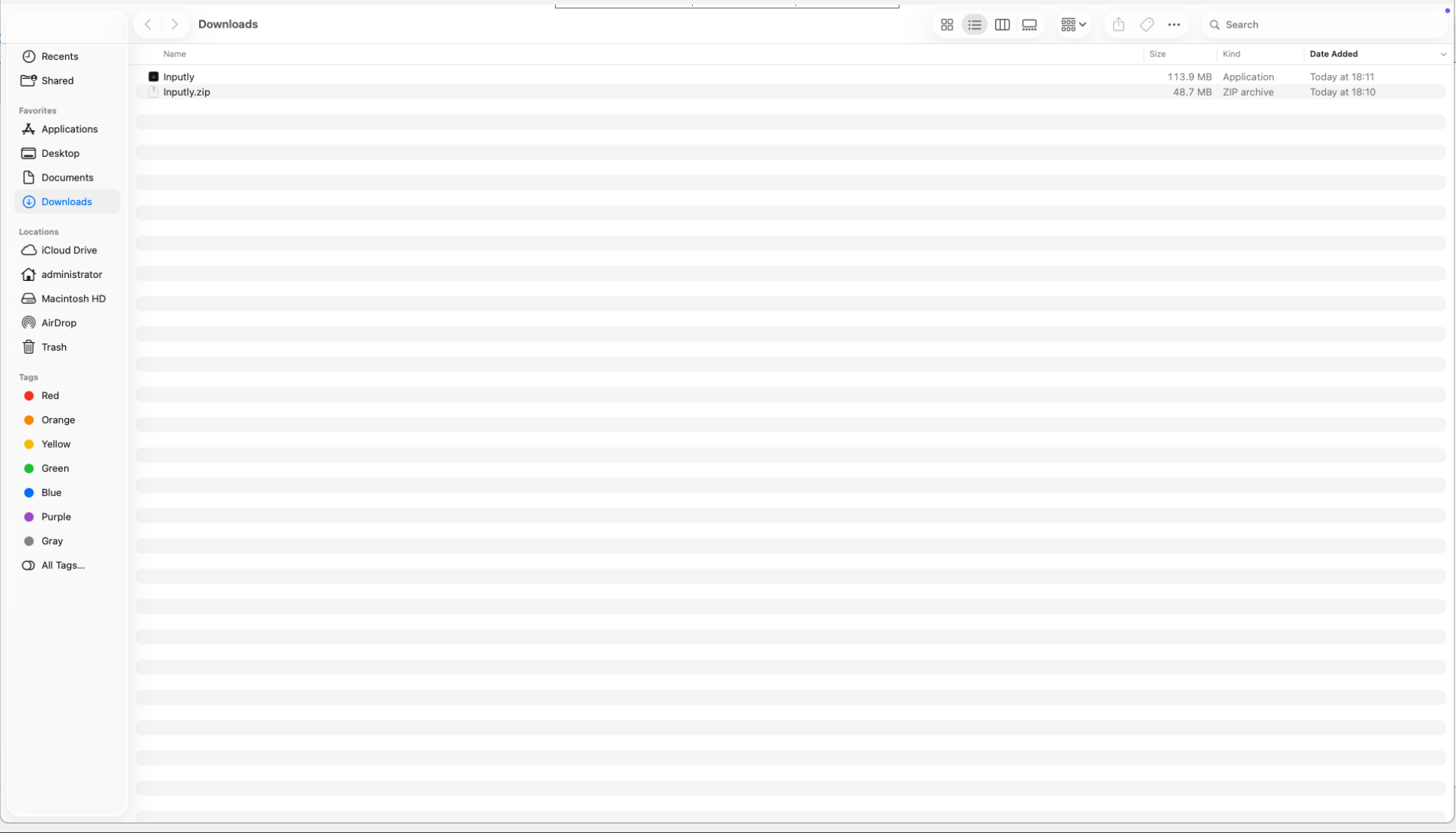
After download: double-click the ZIP. You’ll get Inputly as an app bundle.
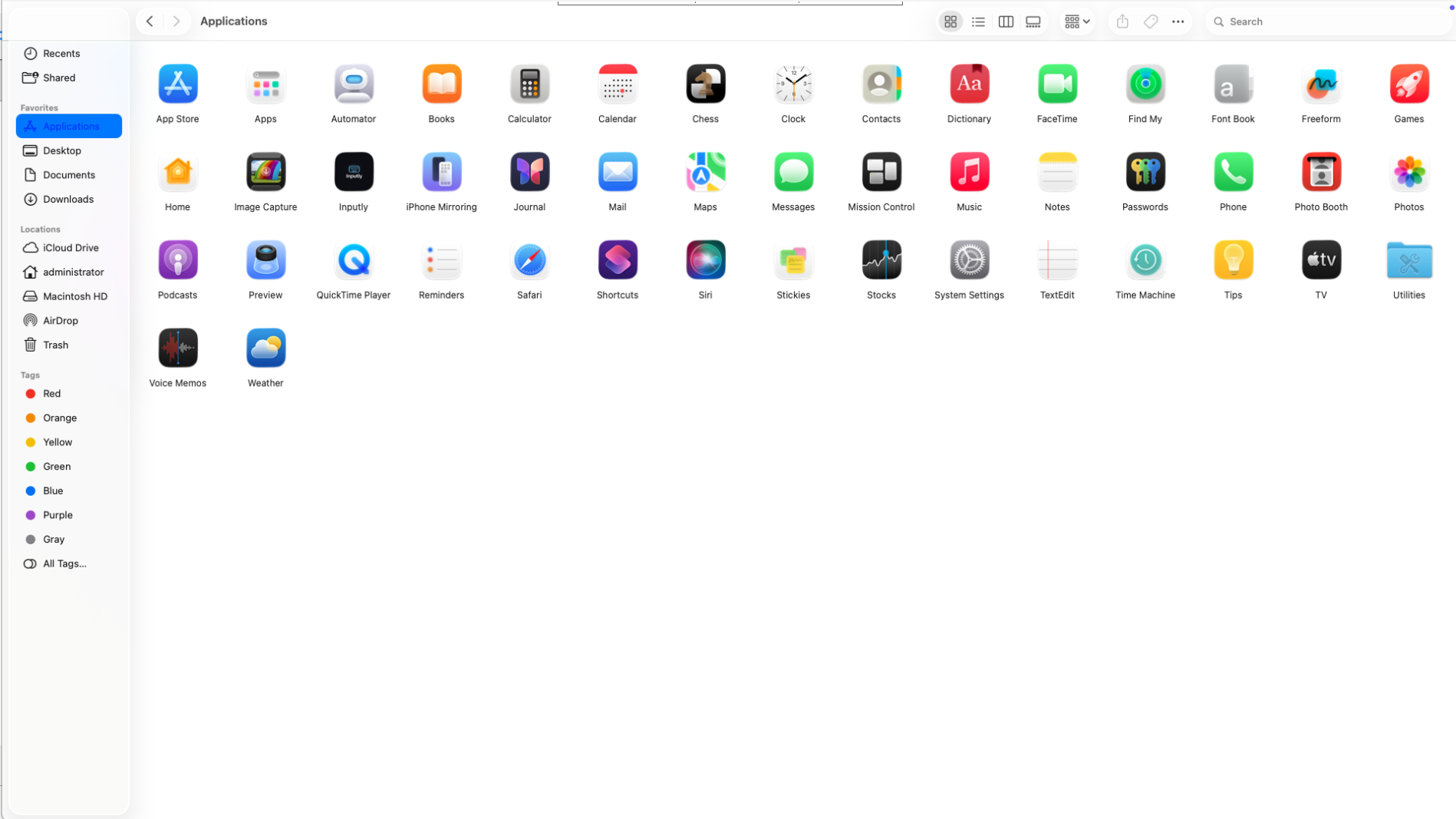
Drag Inputly.app into Applications before you open it. Do this once. Saves you from permission hell.
2. First launch (Gatekeeper)
When you try to run Inputly the first time, macOS will complain because it’s not from the App Store / not notarized. That’s expected.
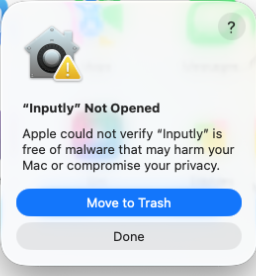
You’ll see something like “Inputly” could not be verified. Click Open Anyway (or right-click the app → Open to get that option).
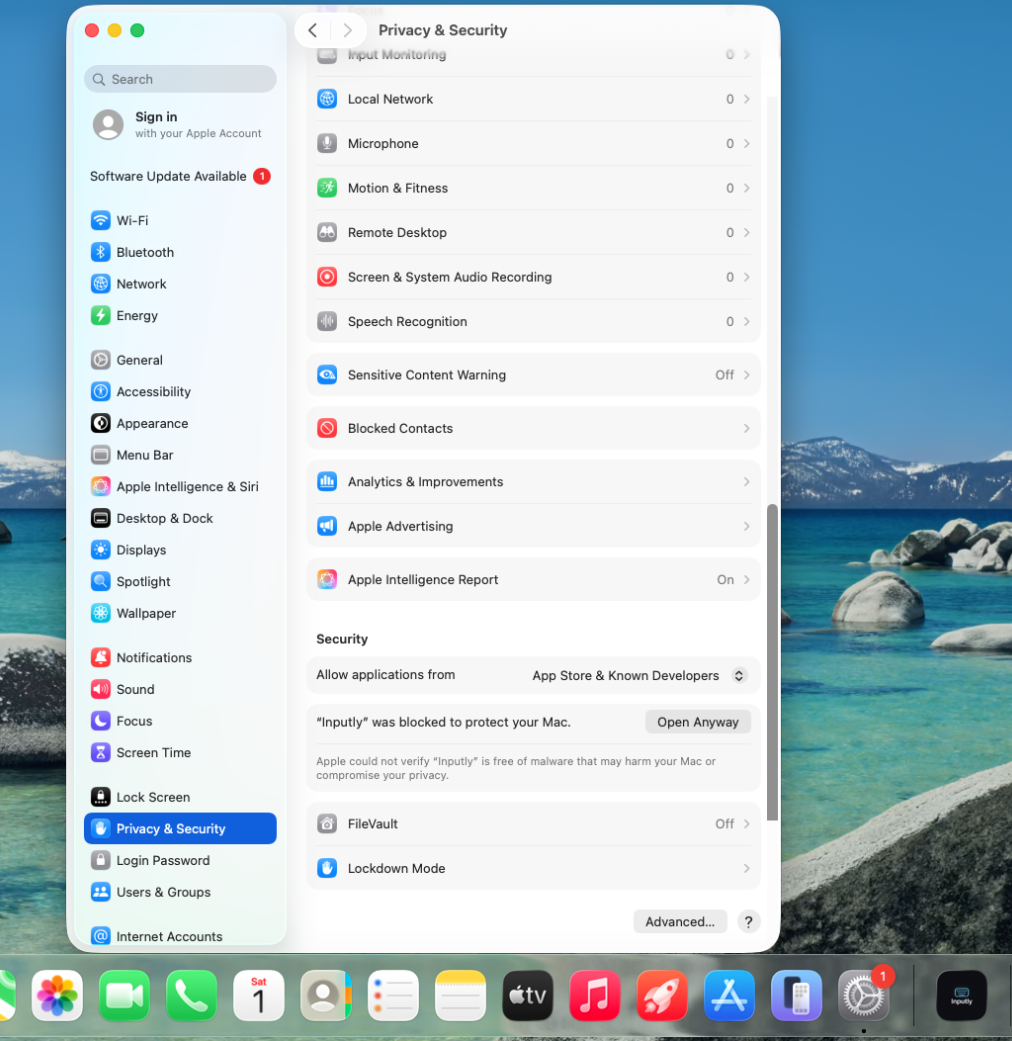
Didn’t get the button? Go to System Settings → Privacy & Security and scroll down. You’ll see “Inputly was blocked.” Hit Open Anyway.
3. Grant permissions
Inputly can’t type for you or listen for your hotkeys until macOS trusts it. You must approve it in Accessibility and Input Monitoring. On some systems you’ll also get a Local Network prompt.
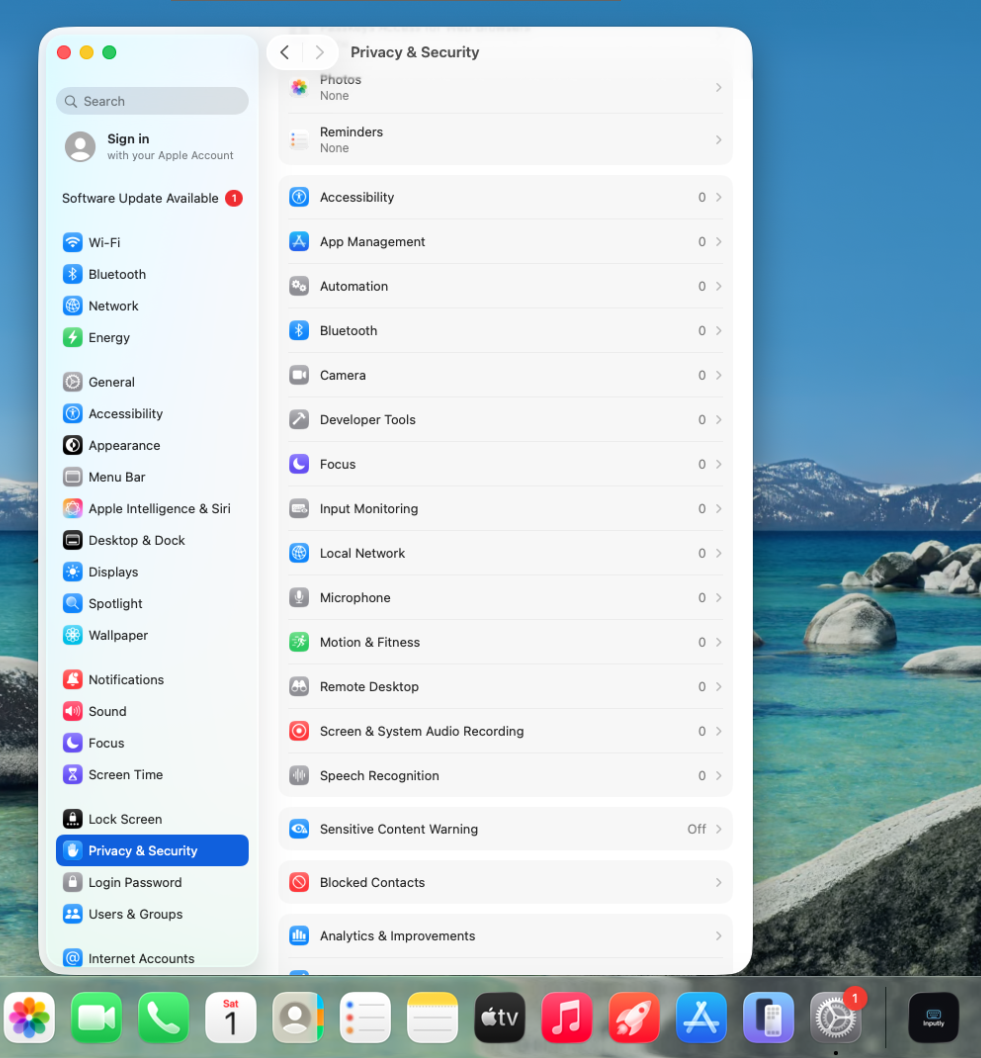
You’ll be flipping toggles in Accessibility and Input Monitoring.

Go to Privacy & Security → Accessibility. Turn the toggle for Inputly ON. You might need to unlock with your password.
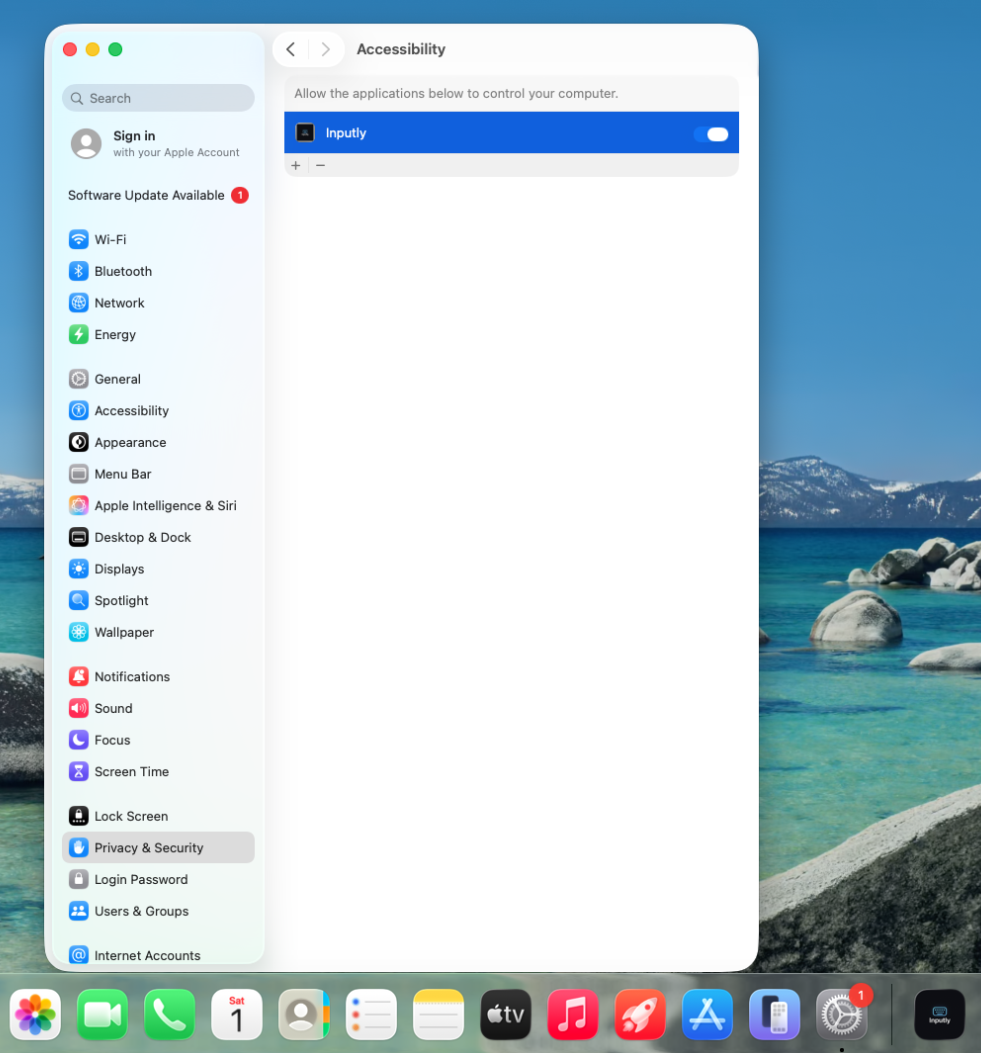
When Inputly is ON here, macOS allows it to generate keystrokes on your behalf.
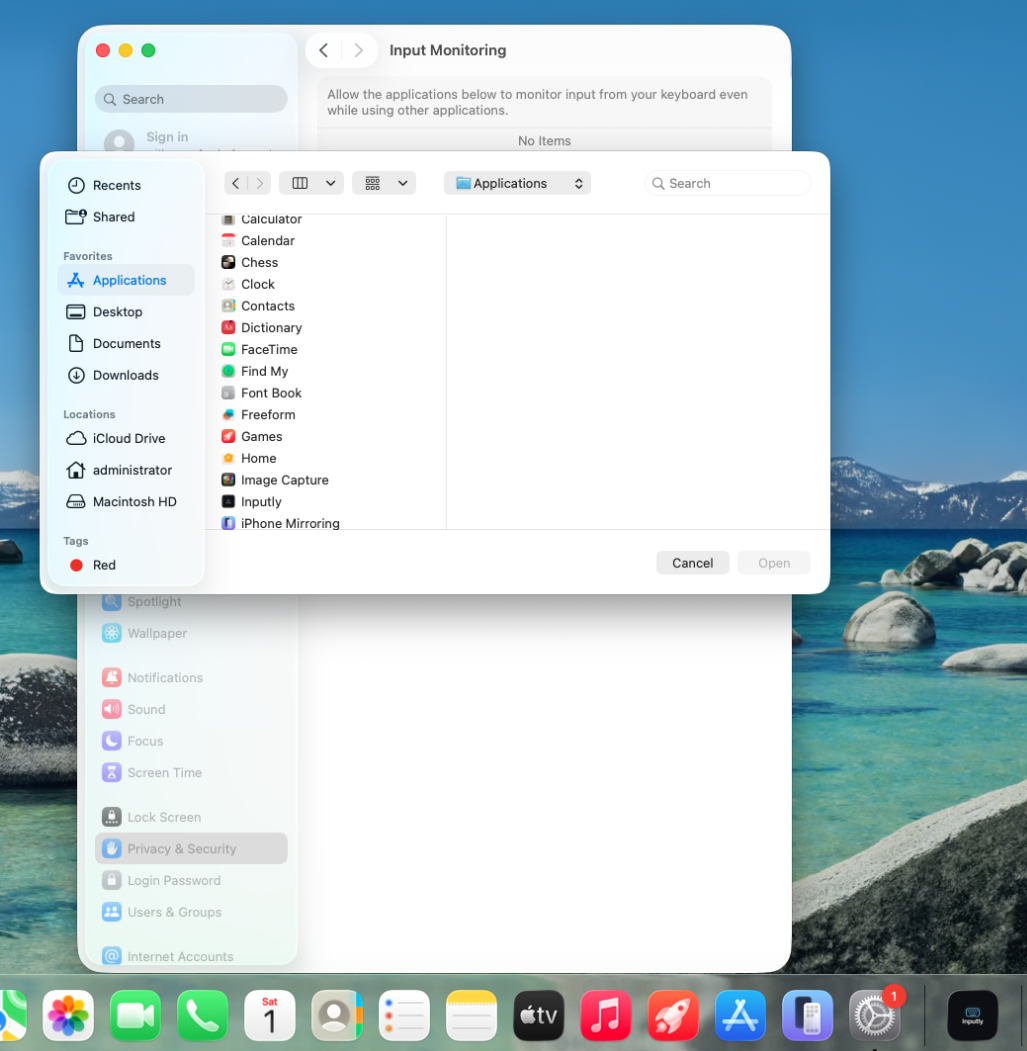
In Privacy & Security → Input Monitoring, click +, choose Inputly from Applications, and confirm.

After adding it, make sure Inputly is toggled ON. Without this, hotkeys and cadence learning will not work.
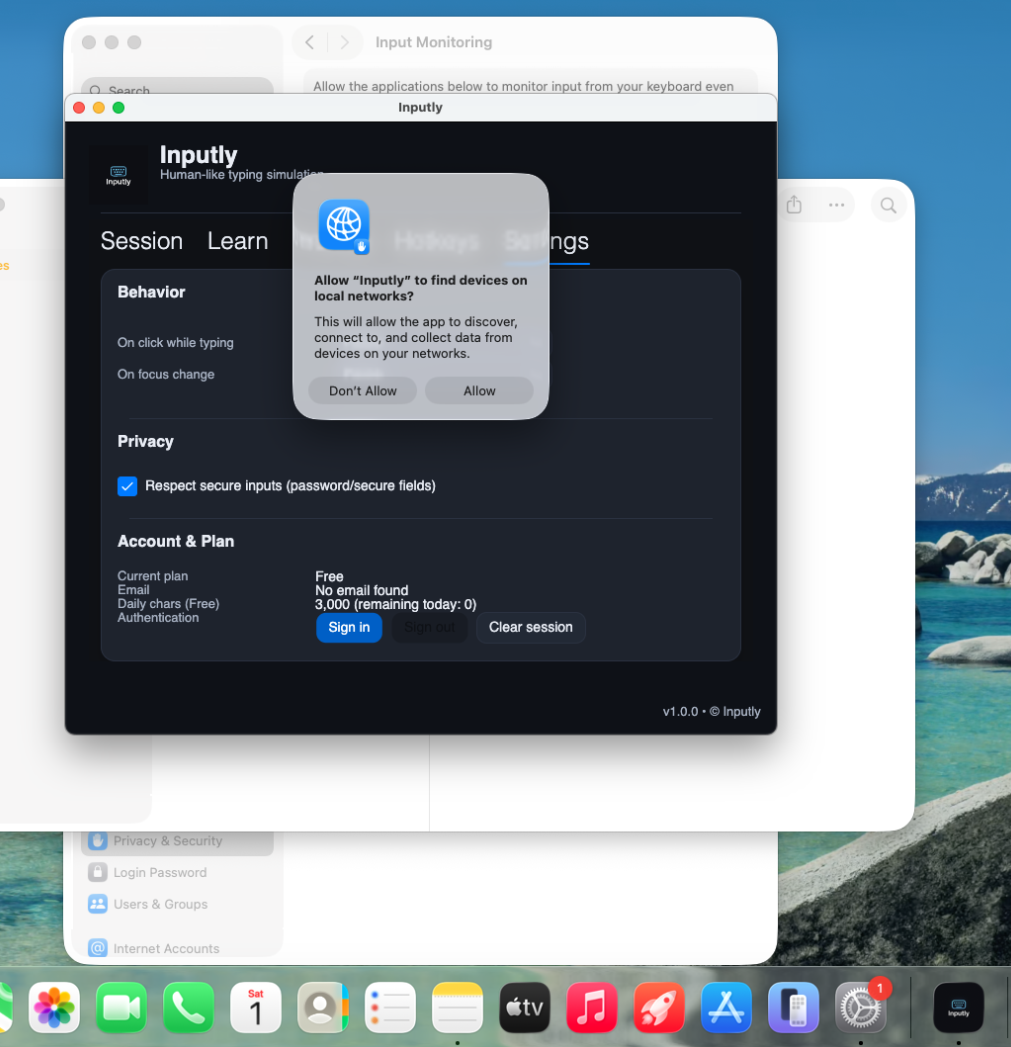
macOS may also ask to let Inputly access devices on your local network. Click Allow. This is normal for automation-style apps.
4. Confirm it's actually working
Quick test: open any text field (Notes, TextEdit, chat box), copy some text, then trigger Inputly’s Start Typing.
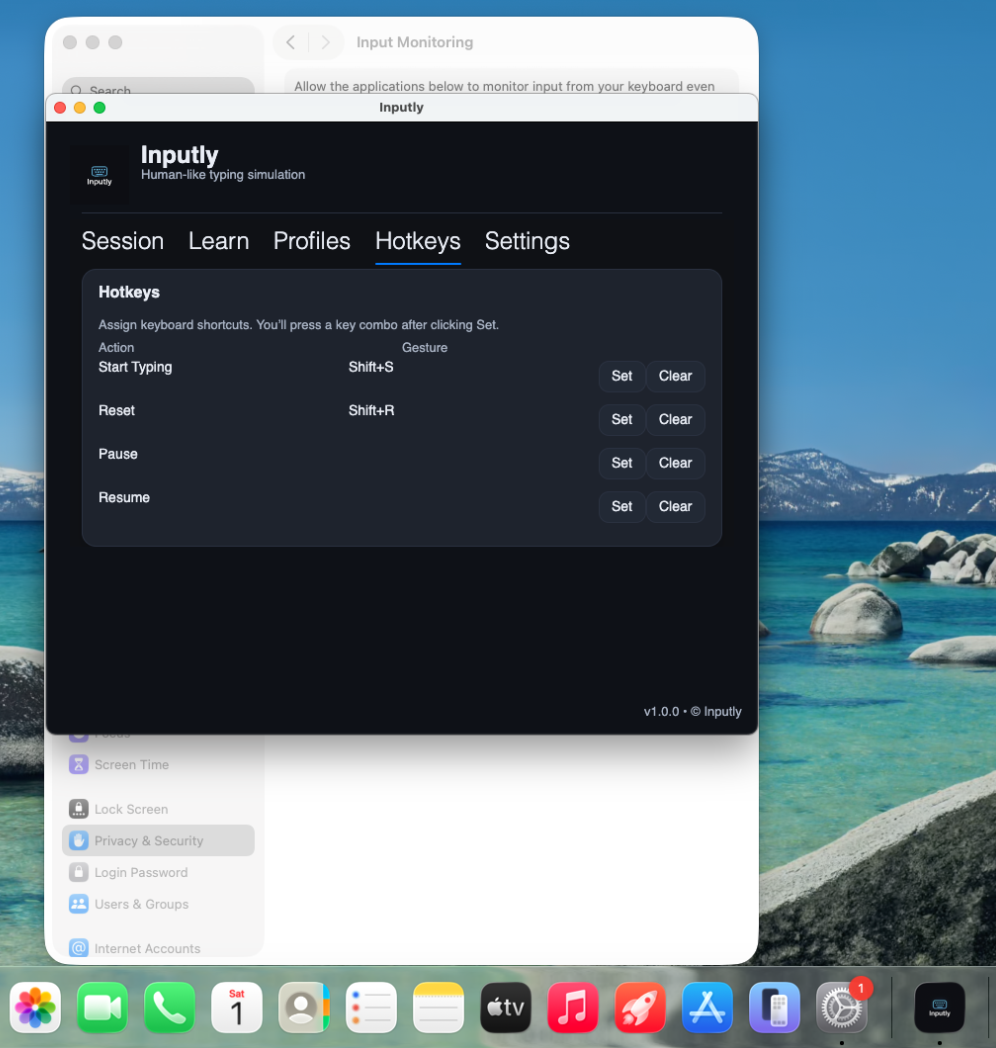
If you can assign hotkeys here, and the app isn't yelling at you for missing permissions, you're good.
5. If nothing is typing
- Accessibility toggle for Inputly is ON
- Input Monitoring toggle for Inputly is ON
- Inputly is in /Applications, not running from Downloads
- You restarted Inputly after granting permissions
- Your cursor is focused in a normal text field (not a secure password box)
✅ Summary
Required:
- Accessibility → ON for Inputly
- Input Monitoring → ON for Inputly
Nice-to-have:
- Local Network prompt → Allow
Usual failure:
- You clicked into another window mid-typing so Inputly paused (depends on Settings → Behavior)
- You never hit Start Typing / hotkey
- You didn't relaunch after granting permissions
✅ Tips for Best Use
Place your cursor first. Then trigger Inputly. Don’t try to “steer it” while it’s typing unless you’ve set Pause-on-click.
If nothing types, 90% of the time it’s because Accessibility or Input Monitoring isn’t enabled. The other 10% is you switched focus to a protected field and Inputly respected it.
Make separate profiles. “Fast churn” for chat. “Careful teacher voice” for live demos.
Ready to Get Started?
Download Inputly and start typing with human-like cadence today. The Free plan is enough to demo it and see it work.